 MareStare
 Bilibili Reposting Guide
March 15, 2026
This article describes my personal experience using Bilibili, downloading videos from it, and editing (translating) them in the best possible quality for reposting on other platforms. It’s not as straightforward as it might seem at first glance, which is why I wrote this guide to describe all the nuances.
We’ll go step by step. First - translating Bilibili into English.
English Bilibili
Bilibili’s user interface is Chinese-only, which makes it hard to navigate if you don’t know Chinese (I certainly don’t). There are a couple of options for getting an English version of Bilibili.
Note, however, that none of the options below are official, and Bilibili’s UI may break here and there. For example, I know for sure that Bilibili’s submit buttons (e.g., the button to confirm a verification code or send a comment/message) break with the “Translate the Page” approach. You’ll have to try other options or fall back to the Chinese version of the site to interact with those.
Translate the Page
This is the easiest but lowest-quality option. You can use your browser’s built-in page translation feature. This is also the only option I know of for using Bilibili on a mobile phone.
If you use Chrome, install the Google Translate extension.
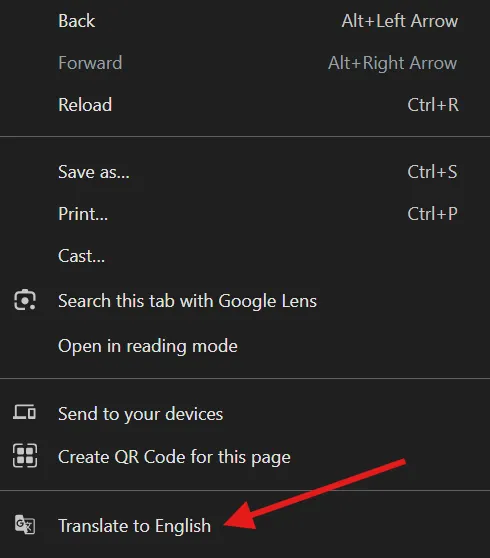
Right-click on the page and select “Translate to English”
This doesn’t work well for dynamic content on the page. For example, comments under videos are loaded separately only after you scroll down to see them, and they won’t be translated.
BiliBili-To-English Browser Extension
There is a browser extension, BiliBili-To-English, that does a slightly better job than generic page translation. It translates dynamic content such as comments and does a better job at keeping good CSS styling. The main downside of this extension is that it works slower than generic page translation. You’ll need to wait several seconds before the entire page is translated.
Follow the instructions on GitHub to install the extension for your browser. At the time of writing, it is available in the Firefox add-ons registry, but you’ll have to download and install it in developer mode manually for Chrome.
The docs tell you to disable developer mode after installation in Chrome, but you shouldn’t do that because this will also disable the extension. Here is the issue about that.
Translating Arbitrary Chinese Text
Sometimes none of the options above will work perfectly and you may still see some Chinese text. Besides manually copying text into Google Translate, you can use the Google Translate mobile app’s image recognition capability. This is most useful for Chinese text embedded directly into video or image content.
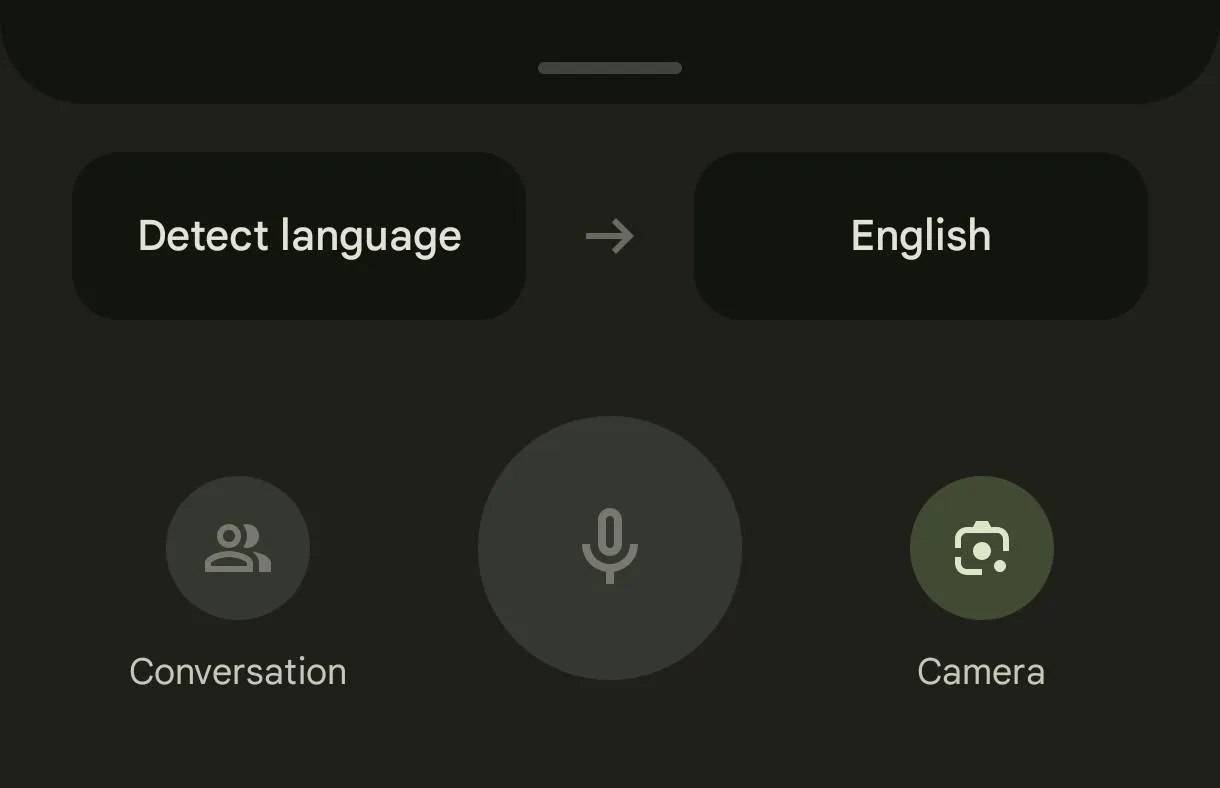
Use the “Camera” button in the app to translate text from your camera footage in real time, or translate text from an existing image or screenshot (there is an option to load an image from your gallery).
Create an Account
This is optional but recommended. You should get approval from the original author before reposting any content. At the very least, it’s nice to let them know about your intention. It may also make them happy to know their creation is getting some love. Plus, this way you can grow your social network a little.
⚠️ Always abide by Chinese laws and Bilibili’s Terms of Service. For example, never share any suggestive, let alone explicit, content on Bilibili or other Chinese sites, even in private messages.
Registration
If you have a friend who is already using Bilibili and has an account level of 5 or higher, ask them for an invite code. This will let you skip the step of unlocking full access. Otherwise, just go through the standard Login/Register Bilibili UI.
You’ll need to use your mobile phone number to create an account. You’ll receive a verification code via SMS or through messaging apps connected to your phone number (e.g. Viber or Telegram, if you use any of these).
Note that it may take several attempts of re-sending the verification code before you actually receive one. Just be patient. It seems that many Chinese apps have trouble sending verification codes, but Bilibili always sends one eventually after a few attempts.
Use Google Translate’s image recognition feature and/or ChatGPT to figure out how to complete captchas along the way. Bilibili has a lot of captchas!
Once you are registered, I recommend setting up a readable username, profile picture, and description. Chinese apps tend to have aggressive moderation systems, and they may flag your account as suspicious for seemingly innocuous reasons. You don’t want to give them another reason to flag you, do you?
Unlock Full Access
Initially, your account does not have access to posting comments under videos and some other features unless you registered with an invite code from someone who has a level-5 or higher account on Bilibili.
You can get full access by passing the Bilibili exam here: https://www.bilibili.com/v/newbie. It is a quiz with 100 questions, and you need to answer at least 60 correctly to pass. It took me approximately 40 minutes to complete it with 93 correct answers out of 100, but I’m sure you can finish it faster if you stop once you reach 60 correct answers and/or follow the tips below.

My Bilibili exam result
I answered all 100 questions just to look extra nice to Bilibili’s moderation system, although I’m not sure if that actually matters.
Quiz Tips
Based on this Reddit comment, it looks like you can click an arbitrary answer for the first 40 questions, and Bilibili will show you the correct one, prompting you to click it. I definitely saw it working that way myself, but I didn’t check the exact number of questions it works for, so trust Reddit if you want in this regard.
For any other questions, use ChatGPT, Google Gemini, or another LLM. I had to use both ChatGPT and Gemini to complete the exam because I exhausted my daily ChatGPT quota while doing this.
You can start the chat with a prompt like the one below. Make sure to copy the question and answers into the chat as well.
Help me answer questions from the test on Bilibili. I’ll post them one-by-one. Specify just the ordinal number of the answer.
The prompt asks for the ordinal number because it’s the easiest and fastest way to visually find the answer on the exam page.
Downloading Videos
You might be tempted to use an online website for downloading videos from Bilibili, but I recommend that you don’t. They usually have many ads and often only give you a 720p version of the video.
Even websites that allow you to download a 1080p version often do not give you the original 1080p video. They appear to recompress it for some reason. One website I used didn’t even include audio in the video file, so you had to download it and combine with the video separately 🤦.
The best way to download a video from Bilibili is via yt-dlp. It is a simple console application written in Python and distributed as a single executable file. Download it from their GitHub Releases according to your platform. For example, if you are on Windows, use yt-dlp_x86.exe.
Create a directory somewhere on your disk and put this executable file there. For example, I store executable files in D:\apps\bin. After that, you should be able to use this app via your system’s terminal.
Open the terminal/console to check that everything works. You can open it by typing “terminal” in your system’s search.
Type the following command (make sure to replace the path to yt-dlp.exe with your own):
D:\apps\bin\yt-dlp.exe --versionYou should see output like this. Your date will probably differ because you’ll download a newer version of the app than the one I had at the time of writing this article, and that’s fine.
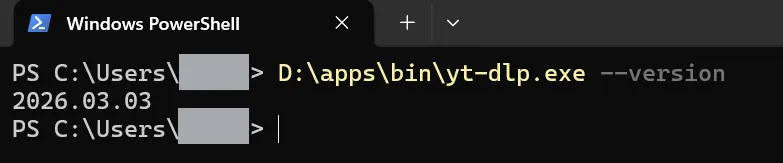
Now you can download any video from Bilibili using a command like the one below. Just copy the video URL and paste it into the command. You may copy the full URL, including the ?spm_id_from=... part - it will work too. I truncated it just to shorten the example.
D:\apps\bin\yt-dlp.exe -f "bv*+ba/b" https://www.bilibili.com/video/BV1W9ZjBeEyWThis will create an MP4 file with the best video (bv) and best audio (ba) quality in the directory where your terminal is opened. By default, on Windows this is C:\Users\{your user name}.
You can grab that file from there, and it should already be good enough to reupload. However, you may want to edit the video to translate the content, for example by adding English subtitles.
Also, check the bonus section, which explains how to shorten the D:\apps\bin\yt-dlp.exe part of the command to just yt-dlp in your terminal.
Editing/Translating Videos
Use any video editing software you are comfortable with. If you don’t have a preference, I recommend DaVinci Resolve. There is a free version of this app, and you likely won’t need the paid version even for advanced editing unless you plan to run a professional editing studio.
There is also a built-in video editor called “Clipchamp” in Windows 11. It’s a very beginner-friendly and well-designed editor. Big respect to the original developers of this app. They managed to build a good product and sell it to Microsoft. While they likely made millions by doing that, it obviously enacted the process of enshittification of Clipchamp.
For example, Clipchamp doesn’t support exporting to resolutions higher than 1080p unless you pay Microsoft. You’ll also experience annoying popups and default settings that try to push you into using Microsoft OneDrive. So use it at your own discretion.
Encoding the Best Video Quality
While I won’t teach you how to do video editing, I’ll provide some tips on how to ensure good quality and a smaller file size for the final video.
There is a fundamental problem: video editors (including the one used to produce the original video) and Bilibili itself compress videos during export and upload. The video you downloaded from Bilibili has already undergone several rounds of compression and re-encoding, and it already contains some (usually negligible) artifacts.
When your video editor produces a new file, it compresses the video again worsening its quality even more. Unfortunately, there is no way to avoid this, that I know of. You will likely end up with a video that is slightly worse in quality and larger in size than the original.
You can try reducing the final file size by compressing the video with ffmpeg.
Optimizing the Final Video with FFmpeg
Download the ffmpeg executable from the official website and place it in the same directory as the yt-dlp executable. FFmpeg’s download page is a bit tricky; if you are on Windows, use “Windows builds from gyan.dev” and download ffmpeg-git-full.7z (I copied this link here for you just in case). You’ll find ffmpeg.exe in the bin directory of the archive.
Once you have ffmpeg installed, you can run the following command to optimize your video file. Replace $path with the input file path and $out_path with the desired output file path (ending with .mp4). This command also assumes you added the ffmpeg directory to your system PATH; otherwise, use the full path to the executable.
ffmpeg -y -i $path -c:v libx264 -preset veryslow -crf 20 -pix_fmt yuv420p -movflags +faststart $out_pathThe parameter -crf 20 controls output quality. You can change the number from 0 to 53, where 0 is lossless and 53 is maximum compression. The value 20 is a good default that I personally use.
You can also use ffmpeg to re-encode the video to webm if you plan to upload it to Derpibooru, which requires all videos to be in webm format. Use a command like below, just make sure $out_path ends with .webm.
ffmpeg -y -i $path $out_pathConclusion
That’s all! Thank you for following the guide. If you actually made it this far, consider leaving a message or comment somewhere I might see it with the code phrase “Littlepip is the best mrae” (verbatim) to let me know someone actually read all this ;D.
Bonus. Add Short yt-dlp Command to Your Terminal
This section is optional. Feel free to skip it. By following the steps below, you’ll be able to shorten a command like this:
D:\apps\bin\yt-dlp.exe -f "bv*+ba/b" ...to this:
yt-dlp -f "bv*+ba/b" ...To do this, you need to add the directory containing the yt-dlp executable to your system’s Path (on Windows) or PATH (on Linux/macOS) environment variable. If you are on Windows, you can do this by typing “environment” into Windows search. You should see an item like the one below.
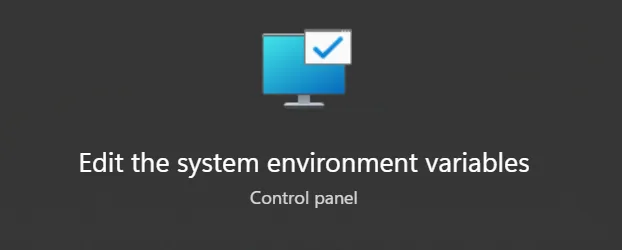
This will open the following window, where you should click “Environment Variables”.
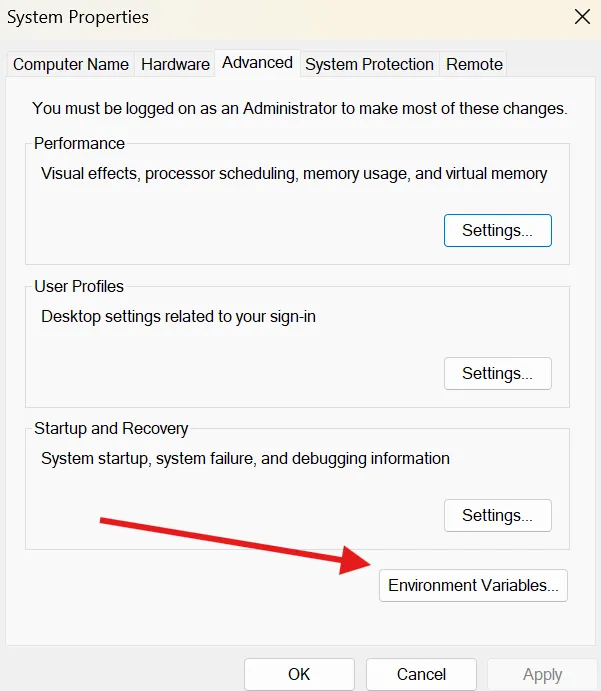
Find the Path variable under “User variables for {your username}”, double-click it, then click New and enter the path to the folder containing yt-dlp.exe. Click OK and close all the opened windows.
Now, if you place any other executable into this folder, it will also become available as a short terminal command under its file name.